Add Google Analytics to Ghost
Thanks to Jon Henshaw for his tutorial on this topic.
#####Analytics I enjoy writing this blog. It’s satisfying to know that people like reading it. Aside from peers commenting on my blog in-person, I’ve been relying on Azure to tell me about my traffic.
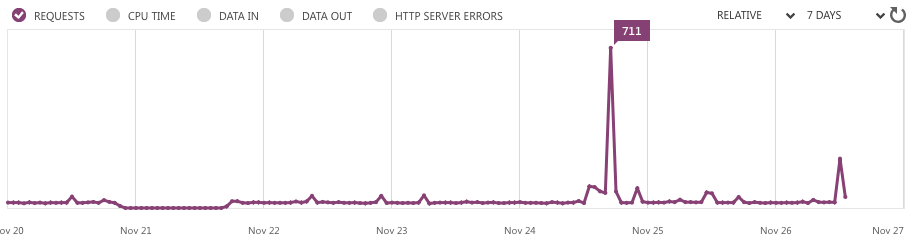
#####Google Analytics In order to learn more, you can add a service by Google to get more, and even real-time, information about visitors. For small websites like mine, this is “internet” free.
Even better, it’s a relatively simple process to update your Ghost blog to give you more information using this service.
#####Step-by-Step I deploy from source control on GitHub using Kevin Meurer’s cloned repo. So the end of these steps will be specific to that kind of deployment.
- Clone down a local copy of your Ghost code.
- Navigate to [http://www.google.com/analytics/](http://www.google.com/analytics/). Log in using any gmail account.
- Fill in the form with information about your blog. 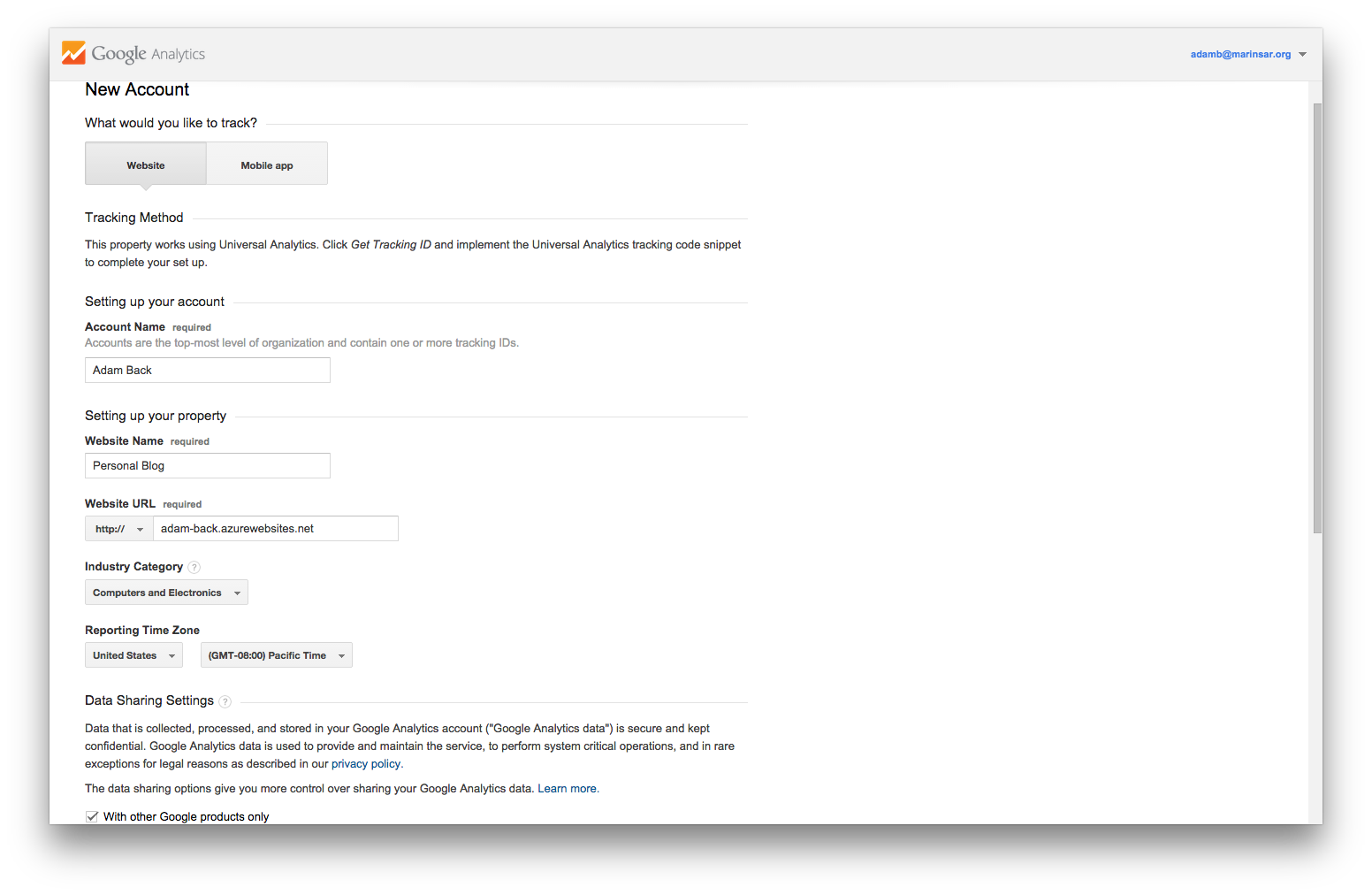
- Copy all of the code on the next screen. 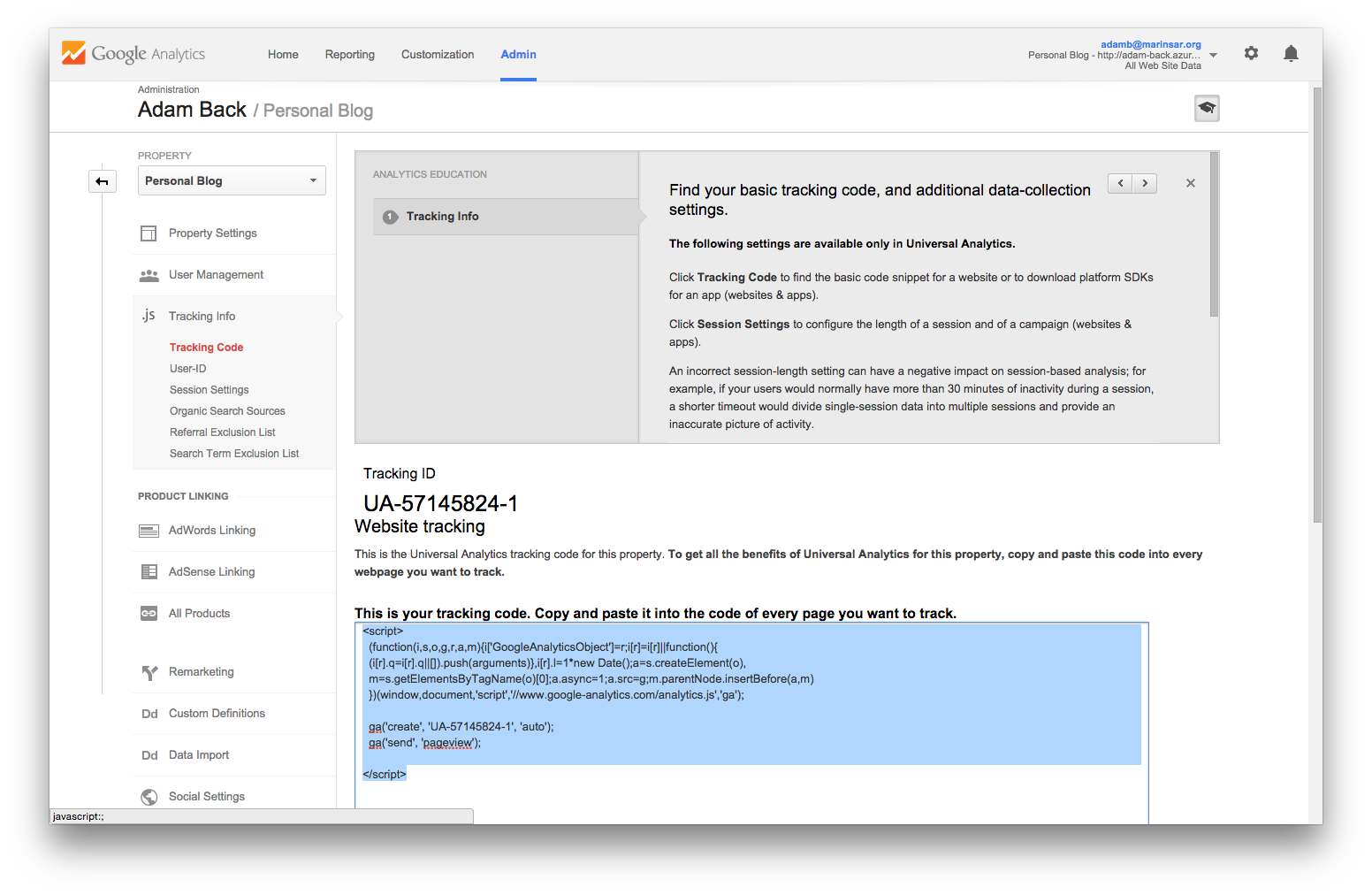
- Open the code for your ghost blog and open the default.hbs file. It should be at `/content/themes/casper/default.hbs`. If you're using a different theme, navigate to that theme instead of casper.
- Past that script code at the bottom of you head tag. ######Before 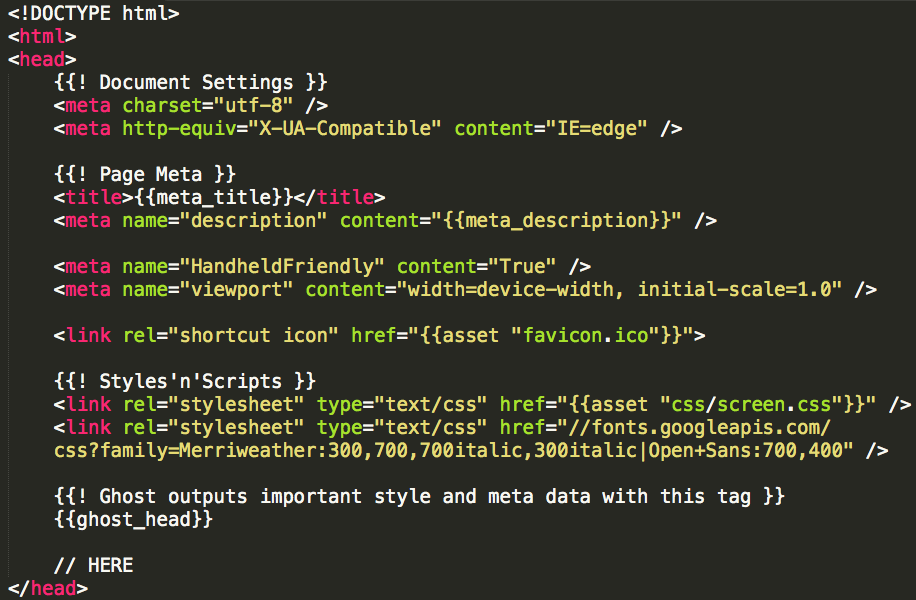 ######After 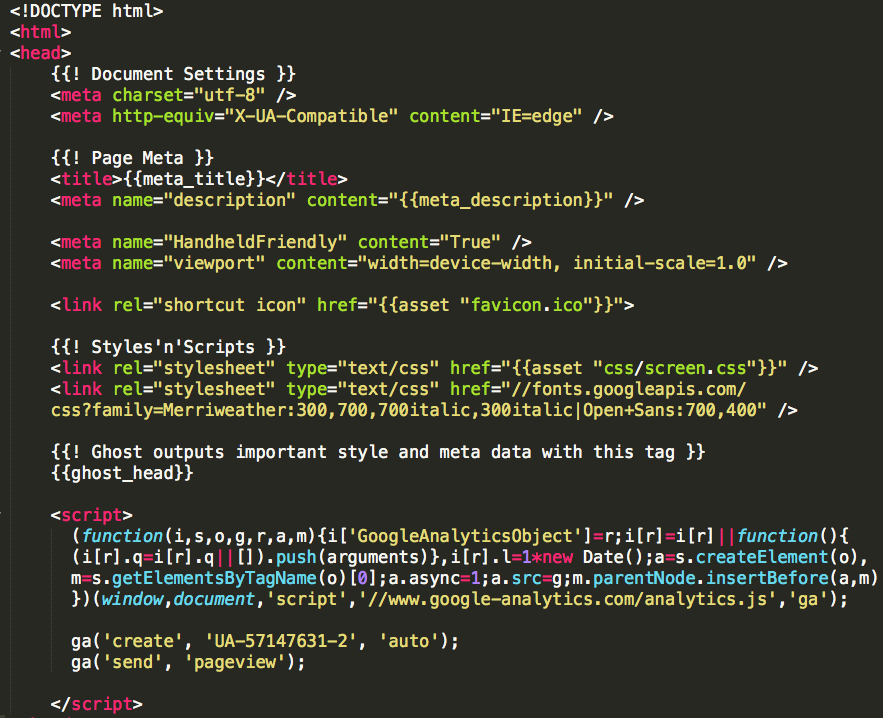
- Save, commit the change, then push it up to source control. Sit back and let it deploy! --- #####Next Steps Make some posts, share with friends. Hopefully they're good friends and they read your blog. Now to get meta: I'll update this blog with data I receive from Google Analytics...